> ## Documentation Index
> Fetch the complete documentation index at: https://runpod-b18f5ded-promptless-websocket-streaming-tutorial.mintlify.site/llms.txt
> Use this file to discover all available pages before exploring further.
# Overview
> Get on-demand access to powerful computing resources.
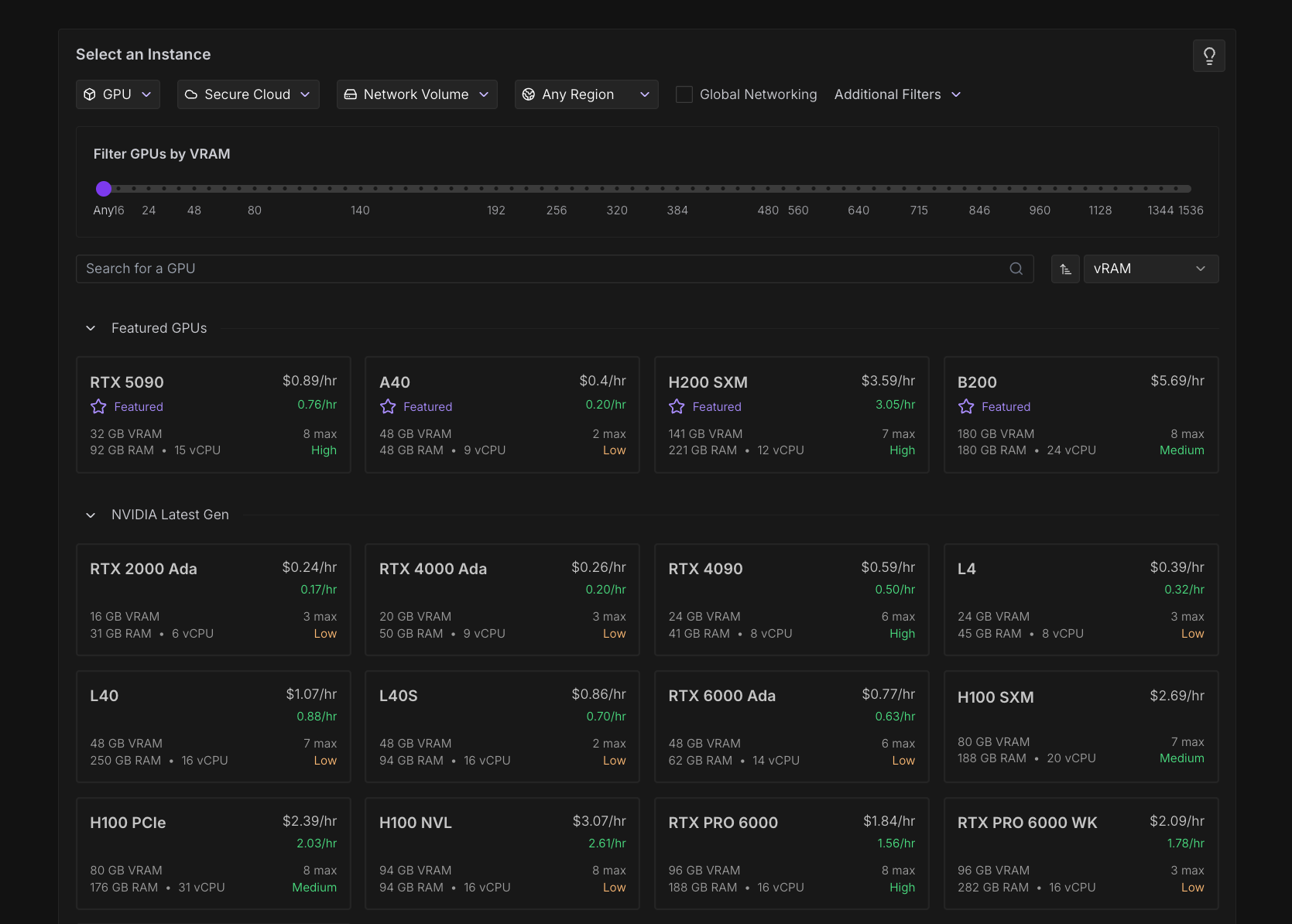 Pods provide instant access to powerful GPU and CPU resources for AI development, machine learning, rendering, and other compute-intensive workloads.
You have full control over your computing environment, allowing you to customize software, storage, and networking to match your exact requirements.
When you're ready to get started, [follow this tutorial](/get-started) to create an account and deploy your first Pod.
## Key components
Each Pod consists of these core components:
* **Container environment**: An Ubuntu Linux-based container that can run almost any compatible software.
* **Unique identifier**: Each Pod receives a dynamic ID (e.g., `2s56cp0pof1rmt`) for management and access.
* [Storage](#storage-options):
* **Container volume**: Houses the operating system and temporary storage.
* **Disk volume**: Persistent storage that is preserved between Pod starts and stops.
* **Network volume (optional)**: Permanent, portable storage that can be moved between machines and persists even after Pod deletion.
* **Hardware resources**: Allocated vCPU, system RAM, and multiple GPUs (based on your selection).
* **Network connectivity**: A proxy connection enabling web access to any [exposed port](/pods/configuration/expose-ports) on your container.
## Pod templates
[Pod templates](/pods/templates/overview) are pre-configured Docker image setups that let you quickly spin up Pods without manual environment configuration. They're essentially deployment configurations that include specific models, frameworks, or workflows bundled together.
Templates eliminate the need to manually set up environments, saving time and reducing configuration errors. For example, instead of installing PyTorch, configuring JupyterLab, and setting up all dependencies yourself, you can select an official Runpod PyTorch template and have everything ready to go instantly.
To learn how to create your own custom templates, see [Build a custom Pod template](/pods/templates/create-custom-template).
## Storage
Pods offer three types of storage to match different use cases:
Every Pod comes with a resizable **container disk** that houses the operating system and stores temporary files, which are cleared after the Pod stops.
**Volume disks** provide persistent storage that is preserved throughout the Pod's lease, functioning like a dedicated hard drive. Data stored in the volume disk directory (`/workspace` by default) persists when you stop the Pod, but is erased when the Pod is deleted.
Optional [network volumes](/storage/network-volumes) provide more flexible permanent storage that can be transferred between Pods, replacing the volume disk when attached. When using a Pod with network volume attached, you can safely delete your Pod without losing the data stored in your network volume directory (`/workspace` by default).
To learn more, see [Storage options](/pods/storage/types).
## Deployment options
You can deploy Pods in several ways:
* [From a template](/pods/templates/overview): Pre-configured environments for quick setup of common workflows.
* **Custom containers**: Pull from any compatible container registry such as Docker Hub, GitHub Container Registry, or Amazon ECR.
* **Custom images**: Build and deploy your own container images.
* [From Serverless repos](/hub/overview#deploy-as-a-pod): Deploy any Serverless-compatible repository from the [Runpod Hub](/hub/overview) directly as a Pod, providing a cost-effective option for consistent workloads.
## Connecting to your Pod
Once deployed, you can [connect to your Pod](/pods/connect-to-a-pod) through:
* **SSH**: Direct [command-line access](/pods/configuration/use-ssh) for development and management.
* **Web proxy**: HTTP access to [exposed web services](/pods/configuration/expose-ports) via URLs in the format `https://[pod-id]-[port].proxy.runpod.net`.
* **JupyterLab**: A web-based IDE for data science and machine learning.
* **VSCode/Cursor**: [Connect to your Pod with VSCode or Cursor](/pods/configuration/connect-to-ide), working within your volume directory as if the files were stored on your local machine.
## Data transfer
You can sync your Pod's data with [most major cloud providers](/pods/storage/cloud-sync), and transfer data to your local machine using the [Runpod CLI](/runpodctl/overview).
To learn more about all available options, see [Transfer files](/pods/storage/transfer-files).
## Customization options
Pods offer extensive customization to match your specific requirements.
You can select your preferred [GPU type](/references/gpu-types) and quantity, adjust system disk size, and specify your container image.
Additionally, you can configure custom start commands, set [environment variables](/pods/references/environment-variables), define [exposed HTTP/TCP ports](/pods/configuration/expose-ports), and implement various [storage configurations](pods/storage/types) to optimize your Pod for your specific workload.
## Pod types
Runpod offers two types of Pod:
* **Secure Cloud:** Operates in T3/T4 data centers, providing high reliability and security for enterprise and production workloads.
* **Community Cloud:** Connects individual compute providers to users through a vetted, secure peer-to-peer system, with competitive pricing options.
## Deploy a Pod
Follow these steps to deploy a Pod:
1. [Choose a Pod](/pods/choose-a-pod) based on your computing needs and budget.
2. Navigate to the [Pod creation page](https://console.runpod.io/pod/create).
3. Configure your Pod settings, including GPU type, storage, and networking options.
4. Launch your Pod and connect using SSH, JupyterLab, or your preferred remote access method.
5. [Manage your Pod](/pods/manage-pods) through the Runpod console.
## Pricing
Pods are billed by the minute with no fees for ingress/egress. Runpod also offers long-term [savings plans](/pods/pricing#savings-plans) for extended usage patterns. See [Pod pricing](/pods/pricing) for details.
## Limitations
**Docker Compose is not supported:** Runpod runs Docker for you, so you cannot spin up your own Docker instance or use Docker Compose on Pods. If your workflow requires Docker Compose, create a custom template with a pre-built Docker image that contains all necessary components.
**UDP connections are not supported:** Pods only support TCP and HTTP connections. If your application relies on UDP, you'll need to modify your application to use TCP-based communication instead.
**Windows support:** Pods do not currently support Windows.
## Next steps
Ready to get started? Explore these pages to learn more:
* [Deploy your first Pod](/get-started) using this tutorial.
* [Choose a Pod](/pods/choose-a-pod) based on your requirements.
* Learn how to [connect to your Pod](/pods/connect-to-a-pod) after deployment.
* Learn how to [manage your Pods](/pods/manage-pods) using the console and CLI.
* Set up [persistent storage](/pods/storage/types) for your data.
* Configure [global networking](/pods/networking) for your applications.
* [Set up Ollama on a Pod](/tutorials/pods/run-ollama) to run LLM inference with HTTP API access.
* [Build Docker images with Bazel](/tutorials/pods/build-docker-images) to emulate a Docker-in-Docker workflow.
Pods provide instant access to powerful GPU and CPU resources for AI development, machine learning, rendering, and other compute-intensive workloads.
You have full control over your computing environment, allowing you to customize software, storage, and networking to match your exact requirements.
When you're ready to get started, [follow this tutorial](/get-started) to create an account and deploy your first Pod.
## Key components
Each Pod consists of these core components:
* **Container environment**: An Ubuntu Linux-based container that can run almost any compatible software.
* **Unique identifier**: Each Pod receives a dynamic ID (e.g., `2s56cp0pof1rmt`) for management and access.
* [Storage](#storage-options):
* **Container volume**: Houses the operating system and temporary storage.
* **Disk volume**: Persistent storage that is preserved between Pod starts and stops.
* **Network volume (optional)**: Permanent, portable storage that can be moved between machines and persists even after Pod deletion.
* **Hardware resources**: Allocated vCPU, system RAM, and multiple GPUs (based on your selection).
* **Network connectivity**: A proxy connection enabling web access to any [exposed port](/pods/configuration/expose-ports) on your container.
## Pod templates
[Pod templates](/pods/templates/overview) are pre-configured Docker image setups that let you quickly spin up Pods without manual environment configuration. They're essentially deployment configurations that include specific models, frameworks, or workflows bundled together.
Templates eliminate the need to manually set up environments, saving time and reducing configuration errors. For example, instead of installing PyTorch, configuring JupyterLab, and setting up all dependencies yourself, you can select an official Runpod PyTorch template and have everything ready to go instantly.
To learn how to create your own custom templates, see [Build a custom Pod template](/pods/templates/create-custom-template).
## Storage
Pods offer three types of storage to match different use cases:
Every Pod comes with a resizable **container disk** that houses the operating system and stores temporary files, which are cleared after the Pod stops.
**Volume disks** provide persistent storage that is preserved throughout the Pod's lease, functioning like a dedicated hard drive. Data stored in the volume disk directory (`/workspace` by default) persists when you stop the Pod, but is erased when the Pod is deleted.
Optional [network volumes](/storage/network-volumes) provide more flexible permanent storage that can be transferred between Pods, replacing the volume disk when attached. When using a Pod with network volume attached, you can safely delete your Pod without losing the data stored in your network volume directory (`/workspace` by default).
To learn more, see [Storage options](/pods/storage/types).
## Deployment options
You can deploy Pods in several ways:
* [From a template](/pods/templates/overview): Pre-configured environments for quick setup of common workflows.
* **Custom containers**: Pull from any compatible container registry such as Docker Hub, GitHub Container Registry, or Amazon ECR.
* **Custom images**: Build and deploy your own container images.
* [From Serverless repos](/hub/overview#deploy-as-a-pod): Deploy any Serverless-compatible repository from the [Runpod Hub](/hub/overview) directly as a Pod, providing a cost-effective option for consistent workloads.
## Connecting to your Pod
Once deployed, you can [connect to your Pod](/pods/connect-to-a-pod) through:
* **SSH**: Direct [command-line access](/pods/configuration/use-ssh) for development and management.
* **Web proxy**: HTTP access to [exposed web services](/pods/configuration/expose-ports) via URLs in the format `https://[pod-id]-[port].proxy.runpod.net`.
* **JupyterLab**: A web-based IDE for data science and machine learning.
* **VSCode/Cursor**: [Connect to your Pod with VSCode or Cursor](/pods/configuration/connect-to-ide), working within your volume directory as if the files were stored on your local machine.
## Data transfer
You can sync your Pod's data with [most major cloud providers](/pods/storage/cloud-sync), and transfer data to your local machine using the [Runpod CLI](/runpodctl/overview).
To learn more about all available options, see [Transfer files](/pods/storage/transfer-files).
## Customization options
Pods offer extensive customization to match your specific requirements.
You can select your preferred [GPU type](/references/gpu-types) and quantity, adjust system disk size, and specify your container image.
Additionally, you can configure custom start commands, set [environment variables](/pods/references/environment-variables), define [exposed HTTP/TCP ports](/pods/configuration/expose-ports), and implement various [storage configurations](pods/storage/types) to optimize your Pod for your specific workload.
## Pod types
Runpod offers two types of Pod:
* **Secure Cloud:** Operates in T3/T4 data centers, providing high reliability and security for enterprise and production workloads.
* **Community Cloud:** Connects individual compute providers to users through a vetted, secure peer-to-peer system, with competitive pricing options.
## Deploy a Pod
Follow these steps to deploy a Pod:
1. [Choose a Pod](/pods/choose-a-pod) based on your computing needs and budget.
2. Navigate to the [Pod creation page](https://console.runpod.io/pod/create).
3. Configure your Pod settings, including GPU type, storage, and networking options.
4. Launch your Pod and connect using SSH, JupyterLab, or your preferred remote access method.
5. [Manage your Pod](/pods/manage-pods) through the Runpod console.
## Pricing
Pods are billed by the minute with no fees for ingress/egress. Runpod also offers long-term [savings plans](/pods/pricing#savings-plans) for extended usage patterns. See [Pod pricing](/pods/pricing) for details.
## Limitations
**Docker Compose is not supported:** Runpod runs Docker for you, so you cannot spin up your own Docker instance or use Docker Compose on Pods. If your workflow requires Docker Compose, create a custom template with a pre-built Docker image that contains all necessary components.
**UDP connections are not supported:** Pods only support TCP and HTTP connections. If your application relies on UDP, you'll need to modify your application to use TCP-based communication instead.
**Windows support:** Pods do not currently support Windows.
## Next steps
Ready to get started? Explore these pages to learn more:
* [Deploy your first Pod](/get-started) using this tutorial.
* [Choose a Pod](/pods/choose-a-pod) based on your requirements.
* Learn how to [connect to your Pod](/pods/connect-to-a-pod) after deployment.
* Learn how to [manage your Pods](/pods/manage-pods) using the console and CLI.
* Set up [persistent storage](/pods/storage/types) for your data.
* Configure [global networking](/pods/networking) for your applications.
* [Set up Ollama on a Pod](/tutorials/pods/run-ollama) to run LLM inference with HTTP API access.
* [Build Docker images with Bazel](/tutorials/pods/build-docker-images) to emulate a Docker-in-Docker workflow.