> ## Documentation Index
> Fetch the complete documentation index at: https://runpod-b18f5ded-promptless-websocket-streaming-tutorial.mintlify.site/llms.txt
> Use this file to discover all available pages before exploring further.
# Stream data with WebSocket-style streaming
> Build a Serverless endpoint that streams data back to your client using WebSocket-style streaming.
In this tutorial, you'll build a Serverless endpoint that streams data back to your client using WebSocket-style streaming. This approach works well for workloads that process data incrementally—like image processing or text generation—where you want to return partial results as they become available.
You'll create a handler that simulates chunked image processing, deploy it to Runpod Serverless, and build a Python client that receives streamed responses in real time.
## What you'll learn
* Create a streaming handler function that yields incremental results.
* Deploy a custom worker with streaming enabled.
* Send requests to your endpoint and receive streamed responses.
* Process and display streaming output in a Python client.
## Requirements
Before starting, you'll need:
* A Runpod account with credits.
* A Runpod [API key](/get-started/api-keys).
* Python 3.9+ installed locally.
* Docker installed and configured.
* A Docker Hub account for pushing your worker image.
## Step 1: Set up your development environment
Create a project directory and set up a Python virtual environment:
```bash theme={null}
mkdir runpod-base64-stream
cd runpod-base64-stream
python -m venv venv
source venv/bin/activate
pip install runpod Pillow
```
## Step 2: Create a streaming handler function
Create a file named `handler.py` with the following code:
```python handler.py theme={null}
import runpod
import base64
import io
from PIL import Image
import time
def process_image_chunk(chunk_data, chunk_number, total_chunks):
"""
Simulate processing a chunk of image data.
In a real application, you might do actual image processing here.
"""
return {
"chunk_number": chunk_number,
"chunk_size": len(chunk_data),
"processed_at": time.strftime("%H:%M:%S")
}
def generator_handler(job):
"""
Handler that processes a base64 encoded image in chunks and streams results.
"""
job_input = job["input"]
# Get the base64 string from input
base64_string = job_input.get("base64_image")
if not base64_string:
yield {"error": "No base64_image provided in input"}
return
try:
# Decode base64 string
image_data = base64.b64decode(base64_string)
# Open image to validate and get info
image = Image.open(io.BytesIO(image_data))
# Get image info for initial metadata
yield {
"status": "started",
"image_info": {
"format": image.format,
"size": image.size,
"mode": image.mode
}
}
# Simulate processing image in chunks
# In a real application, you might process different parts of the image
chunk_size = len(image_data) // 4 # Process in 4 chunks
total_chunks = (len(image_data) + chunk_size - 1) // chunk_size
for i in range(total_chunks):
start_idx = i * chunk_size
end_idx = min(start_idx + chunk_size, len(image_data))
chunk = image_data[start_idx:end_idx]
# Process this chunk
result = process_image_chunk(chunk, i + 1, total_chunks)
# Add progress information
result["progress"] = f"{i + 1}/{total_chunks}"
result["percent_complete"] = ((i + 1) / total_chunks) * 100
# Stream the result for this chunk
yield result
# Simulate processing time
time.sleep(1)
# Send final completion message
yield {
"status": "completed",
"total_chunks_processed": total_chunks,
"final_timestamp": time.strftime("%H:%M:%S")
}
except Exception as e:
yield {"error": str(e)}
# Start the serverless function with streaming enabled
runpod.serverless.start({
"handler": generator_handler,
"return_aggregate_stream": True
})
```
This handler:
* Accepts a base64-encoded image in the request input.
* Yields an initial status message with image metadata.
* Processes the image in chunks, yielding progress updates for each chunk.
* Sends a final completion message when done.
The key to streaming is using `yield` instead of `return`, and setting `return_aggregate_stream` to `True` when starting the serverless function. This makes the streamed results available via the `/stream` endpoint.
## Step 3: Create a Dockerfile
Create a `Dockerfile` to package your handler:
```dockerfile Dockerfile theme={null}
FROM python:3.9-slim
WORKDIR /app
# Install system dependencies for Pillow
RUN apt-get update && apt-get install -y \
libjpeg-dev \
zlib1g-dev \
&& rm -rf /var/lib/apt/lists/*
COPY requirements.txt .
RUN pip install --no-cache-dir -r requirements.txt
COPY handler.py .
CMD [ "python", "-u", "handler.py" ]
```
Create a `requirements.txt` file:
```txt requirements.txt theme={null}
runpod==1.3.0
Pillow==9.5.0
```
## Step 4: Build and push your Docker image
Build and push your image to Docker Hub:
```bash theme={null}
docker build --platform linux/amd64 -t YOUR_DOCKERHUB_USERNAME/runpod-base64-stream:latest .
docker push YOUR_DOCKERHUB_USERNAME/runpod-base64-stream:latest
```
Replace `YOUR_DOCKERHUB_USERNAME` with your actual Docker Hub username.
## Step 5: Create a Serverless endpoint
Deploy your worker to a Serverless endpoint using the Runpod console:
1. Go to the [Serverless](https://www.runpod.io/console/serverless) section of the Runpod console.
2. Click **New Endpoint**.
3. Click **Import from Docker Registry**.
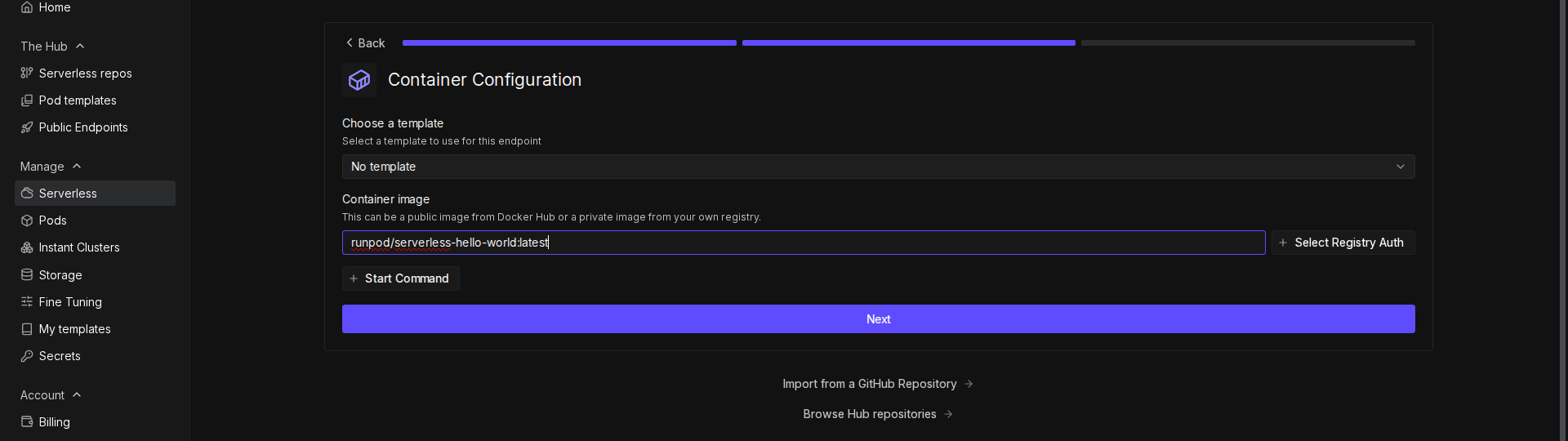
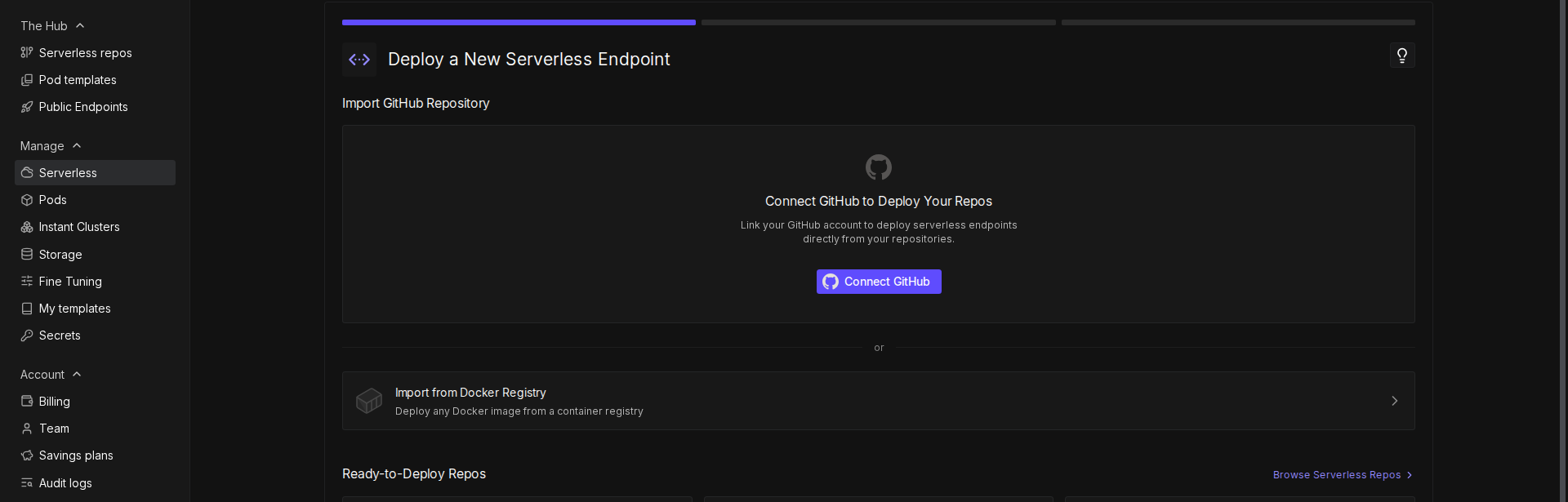 4. In the **Container Image** field, enter your Docker image URL (e.g., `docker.io/YOUR_DOCKERHUB_USERNAME/runpod-base64-stream:latest`).
5. Click **Next**.
4. In the **Container Image** field, enter your Docker image URL (e.g., `docker.io/YOUR_DOCKERHUB_USERNAME/runpod-base64-stream:latest`).
5. Click **Next**.
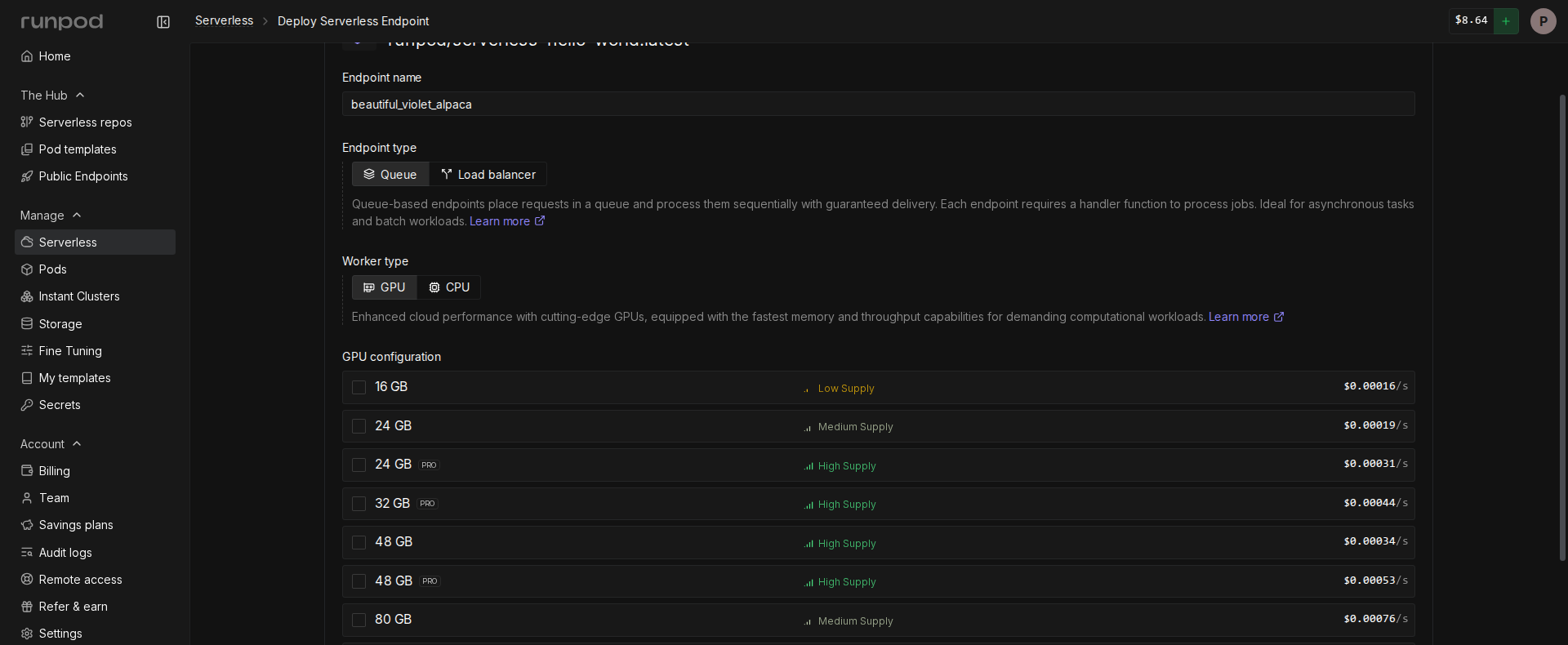
 6. Configure your endpoint:
* Enter a name for your endpoint, or use the randomly generated name.
* Make sure **Endpoint Type** is set to **Queue**.
* Under **GPU Configuration**, select **16 GB** GPUs.
* Leave the rest of the settings at their defaults.
6. Configure your endpoint:
* Enter a name for your endpoint, or use the randomly generated name.
* Make sure **Endpoint Type** is set to **Queue**.
* Under **GPU Configuration**, select **16 GB** GPUs.
* Leave the rest of the settings at their defaults.
 7. Click **Deploy Endpoint**.
Once deployed, note the **Endpoint ID** from the endpoint details page—you'll need it in the next step.
## Step 6: Test the endpoint
Create a file named `test_endpoint.py` to test your streaming endpoint:
```python test_endpoint.py theme={null}
import requests
import json
import time
import base64
from PIL import Image
import io
import os
API_KEY = "YOUR_RUNPOD_API_KEY"
ENDPOINT_ID = "YOUR_ENDPOINT_ID"
# Set up the output directory for saving images
OUTPUT_DIR = os.path.join(os.getcwd(), "output_images")
# Create the output directory if it doesn't exist
if not os.path.exists(OUTPUT_DIR):
os.makedirs(OUTPUT_DIR)
print(f"Created output directory: {OUTPUT_DIR}")
def create_test_image():
"""
Creates a test image and converts it to base64 format.
Returns:
str: The image encoded as a base64 string
"""
# Create a new 100x100 pixel image with a red background
img = Image.new('RGB', (100, 100), color='red')
# Create a bytes buffer to hold the image data
img_byte_arr = io.BytesIO()
# Save the image to the buffer in PNG format
img.save(img_byte_arr, format='PNG')
# Get the byte data from the buffer
img_byte_arr = img_byte_arr.getvalue()
# Save a copy of the input image to disk
input_path = os.path.join(OUTPUT_DIR, 'test_image_input.png')
img.save(input_path)
print(f"Saved input test image as: {input_path}")
# Convert the image bytes to base64 string and return it
return base64.b64encode(img_byte_arr).decode('utf-8')
def save_base64_image(base64_string, filename):
"""
Converts a base64 string back to an image and saves it to disk.
Args:
base64_string (str): The image data as a base64 string
filename (str): The name to give the saved file
"""
try:
# Create the full path where the file will be saved
output_path = os.path.join(OUTPUT_DIR, filename)
# Convert the base64 string back to bytes
image_data = base64.b64decode(base64_string)
# Create an image from the bytes
image = Image.open(io.BytesIO(image_data))
# Save the image as a PNG file
image.save(output_path, 'PNG')
print(f"Saved processed image as: {output_path}")
return True
except Exception as e:
print(f"Error saving image: {str(e)}")
return False
# Set up the API endpoint URLs
run_url = f"https://api.runpod.ai/v2/{ENDPOINT_ID}/run"
# Set up the headers for the API request
headers = {
"Authorization": f"Bearer {API_KEY}",
"Content-Type": "application/json"
}
# Print a redacted version of the authorization header for debugging
print("Using Authorization header:", headers["Authorization"][:10] + "...")
# Create the test image and get its base64 representation
base64_image = create_test_image()
# Create the payload for our API request
payload = {
"input": {
"base64_image": base64_image
}
}
# Send the initial request to start the job
print("\nSending request to:", run_url)
response = requests.post(run_url, headers=headers, json=payload)
# Print debug information about the response
print("Status Code:", response.status_code)
# Check for authentication errors
if response.status_code == 401:
print("\nAuthentication Error: Please check your API key")
exit()
try:
# Parse the JSON response
job_status = response.json()
job_id = job_status["id"]
print(f"\nStarted job: {job_id}")
# Set up the streaming URL for getting results
stream_url = f"https://api.runpod.ai/v2/{ENDPOINT_ID}/stream/{job_id}"
# Keep checking for results until the job is done
while True:
# Get the current status of the job
stream_response = requests.get(stream_url, headers=headers)
stream_data = stream_response.json()
# Check if the job is completed
if stream_data["status"] == "COMPLETED":
print("\nJob completed!")
break
# Check if the job is still running and has new data
elif stream_data["status"] == "IN_PROGRESS" and stream_data.get("stream"):
# Process each piece of output data
for output in stream_data["stream"]:
print(f"Received: {json.dumps(output, indent=2)}")
# If we received a processed image, save it
if "processed_image" in output:
filename = f"output_image_{output.get('chunk_number', 'final')}.png"
save_base64_image(output["processed_image"], filename)
# Check if the job failed
elif stream_data["status"] == "FAILED":
print("\nJob failed!")
print(stream_data.get("error", "No error message provided"))
break
# Wait a bit before checking again
time.sleep(0.5)
except json.JSONDecodeError as e:
print("\nError decoding JSON response:", str(e))
except KeyError as e:
print("\nError accessing response data:", str(e))
print("Full response:", job_status)
except Exception as e:
print("\nUnexpected error:", str(e))
```
Replace `YOUR_RUNPOD_API_KEY` and `YOUR_ENDPOINT_ID` with your actual API key and endpoint ID before running the script.
Run the test script:
```bash theme={null}
python test_endpoint.py
```
You should see output similar to this:
```text theme={null}
Started job: 123e4567-e89b-12d3-a456-426614174000
Received: {
"status": "started",
"image_info": {
"format": "PNG",
"size": [100, 100],
"mode": "RGB"
}
}
Received: {
"chunk_number": 1,
"chunk_size": 2500,
"processed_at": "14:30:45",
"progress": "1/4",
"percent_complete": 25.0
}
...
Received: {
"status": "completed",
"total_chunks_processed": 4,
"final_timestamp": "14:30:48"
}
Job completed!
```
The test script sends a base64-encoded image to your endpoint, then polls the `/stream` endpoint to receive incremental results as they become available.
## Next steps
Now that you've built a streaming endpoint, explore these related topics:
* Learn more about [streaming handlers](/serverless/workers/handler-functions#streaming-handlers) and handler types.
* Explore the [/stream operation](/serverless/endpoints/send-requests#stream) for receiving streamed results.
* Try building a [concurrent handler](/serverless/workers/concurrent-handler) to process multiple requests simultaneously.
7. Click **Deploy Endpoint**.
Once deployed, note the **Endpoint ID** from the endpoint details page—you'll need it in the next step.
## Step 6: Test the endpoint
Create a file named `test_endpoint.py` to test your streaming endpoint:
```python test_endpoint.py theme={null}
import requests
import json
import time
import base64
from PIL import Image
import io
import os
API_KEY = "YOUR_RUNPOD_API_KEY"
ENDPOINT_ID = "YOUR_ENDPOINT_ID"
# Set up the output directory for saving images
OUTPUT_DIR = os.path.join(os.getcwd(), "output_images")
# Create the output directory if it doesn't exist
if not os.path.exists(OUTPUT_DIR):
os.makedirs(OUTPUT_DIR)
print(f"Created output directory: {OUTPUT_DIR}")
def create_test_image():
"""
Creates a test image and converts it to base64 format.
Returns:
str: The image encoded as a base64 string
"""
# Create a new 100x100 pixel image with a red background
img = Image.new('RGB', (100, 100), color='red')
# Create a bytes buffer to hold the image data
img_byte_arr = io.BytesIO()
# Save the image to the buffer in PNG format
img.save(img_byte_arr, format='PNG')
# Get the byte data from the buffer
img_byte_arr = img_byte_arr.getvalue()
# Save a copy of the input image to disk
input_path = os.path.join(OUTPUT_DIR, 'test_image_input.png')
img.save(input_path)
print(f"Saved input test image as: {input_path}")
# Convert the image bytes to base64 string and return it
return base64.b64encode(img_byte_arr).decode('utf-8')
def save_base64_image(base64_string, filename):
"""
Converts a base64 string back to an image and saves it to disk.
Args:
base64_string (str): The image data as a base64 string
filename (str): The name to give the saved file
"""
try:
# Create the full path where the file will be saved
output_path = os.path.join(OUTPUT_DIR, filename)
# Convert the base64 string back to bytes
image_data = base64.b64decode(base64_string)
# Create an image from the bytes
image = Image.open(io.BytesIO(image_data))
# Save the image as a PNG file
image.save(output_path, 'PNG')
print(f"Saved processed image as: {output_path}")
return True
except Exception as e:
print(f"Error saving image: {str(e)}")
return False
# Set up the API endpoint URLs
run_url = f"https://api.runpod.ai/v2/{ENDPOINT_ID}/run"
# Set up the headers for the API request
headers = {
"Authorization": f"Bearer {API_KEY}",
"Content-Type": "application/json"
}
# Print a redacted version of the authorization header for debugging
print("Using Authorization header:", headers["Authorization"][:10] + "...")
# Create the test image and get its base64 representation
base64_image = create_test_image()
# Create the payload for our API request
payload = {
"input": {
"base64_image": base64_image
}
}
# Send the initial request to start the job
print("\nSending request to:", run_url)
response = requests.post(run_url, headers=headers, json=payload)
# Print debug information about the response
print("Status Code:", response.status_code)
# Check for authentication errors
if response.status_code == 401:
print("\nAuthentication Error: Please check your API key")
exit()
try:
# Parse the JSON response
job_status = response.json()
job_id = job_status["id"]
print(f"\nStarted job: {job_id}")
# Set up the streaming URL for getting results
stream_url = f"https://api.runpod.ai/v2/{ENDPOINT_ID}/stream/{job_id}"
# Keep checking for results until the job is done
while True:
# Get the current status of the job
stream_response = requests.get(stream_url, headers=headers)
stream_data = stream_response.json()
# Check if the job is completed
if stream_data["status"] == "COMPLETED":
print("\nJob completed!")
break
# Check if the job is still running and has new data
elif stream_data["status"] == "IN_PROGRESS" and stream_data.get("stream"):
# Process each piece of output data
for output in stream_data["stream"]:
print(f"Received: {json.dumps(output, indent=2)}")
# If we received a processed image, save it
if "processed_image" in output:
filename = f"output_image_{output.get('chunk_number', 'final')}.png"
save_base64_image(output["processed_image"], filename)
# Check if the job failed
elif stream_data["status"] == "FAILED":
print("\nJob failed!")
print(stream_data.get("error", "No error message provided"))
break
# Wait a bit before checking again
time.sleep(0.5)
except json.JSONDecodeError as e:
print("\nError decoding JSON response:", str(e))
except KeyError as e:
print("\nError accessing response data:", str(e))
print("Full response:", job_status)
except Exception as e:
print("\nUnexpected error:", str(e))
```
Replace `YOUR_RUNPOD_API_KEY` and `YOUR_ENDPOINT_ID` with your actual API key and endpoint ID before running the script.
Run the test script:
```bash theme={null}
python test_endpoint.py
```
You should see output similar to this:
```text theme={null}
Started job: 123e4567-e89b-12d3-a456-426614174000
Received: {
"status": "started",
"image_info": {
"format": "PNG",
"size": [100, 100],
"mode": "RGB"
}
}
Received: {
"chunk_number": 1,
"chunk_size": 2500,
"processed_at": "14:30:45",
"progress": "1/4",
"percent_complete": 25.0
}
...
Received: {
"status": "completed",
"total_chunks_processed": 4,
"final_timestamp": "14:30:48"
}
Job completed!
```
The test script sends a base64-encoded image to your endpoint, then polls the `/stream` endpoint to receive incremental results as they become available.
## Next steps
Now that you've built a streaming endpoint, explore these related topics:
* Learn more about [streaming handlers](/serverless/workers/handler-functions#streaming-handlers) and handler types.
* Explore the [/stream operation](/serverless/endpoints/send-requests#stream) for receiving streamed results.
* Try building a [concurrent handler](/serverless/workers/concurrent-handler) to process multiple requests simultaneously.