In this tutorial, you’ll build a Serverless endpoint that streams data back to your client using WebSocket-style streaming. This approach works well for workloads that process data incrementally—like image processing or text generation—where you want to return partial results as they become available. You’ll create a handler that simulates chunked image processing, deploy it to Runpod Serverless, and build a Python client that receives streamed responses in real time.

What you’ll learn

  • Create a streaming handler function that yields incremental results.
  • Deploy a custom worker with streaming enabled.
  • Send requests to your endpoint and receive streamed responses.
  • Process and display streaming output in a Python client.

Requirements

Before starting, you’ll need:
  • A Runpod account with credits.
  • A Runpod API key.
  • Python 3.9+ installed locally.
  • Docker installed and configured.
  • A Docker Hub account for pushing your worker image.

Step 1: Set up your development environment

Create a project directory and set up a Python virtual environment:
mkdir runpod-base64-stream
cd runpod-base64-stream
python -m venv venv
source venv/bin/activate
pip install runpod Pillow

Step 2: Create a streaming handler function

Create a file named handler.py with the following code:
handler.py
import runpod
import base64
import io
from PIL import Image
import time

def process_image_chunk(chunk_data, chunk_number, total_chunks):
    """
    Simulate processing a chunk of image data.
    In a real application, you might do actual image processing here.
    """
    return {
        "chunk_number": chunk_number,
        "chunk_size": len(chunk_data),
        "processed_at": time.strftime("%H:%M:%S")
    }

def generator_handler(job):
    """
    Handler that processes a base64 encoded image in chunks and streams results.
    """
    job_input = job["input"]

    # Get the base64 string from input
    base64_string = job_input.get("base64_image")
    if not base64_string:
        yield {"error": "No base64_image provided in input"}
        return

    try:
        # Decode base64 string
        image_data = base64.b64decode(base64_string)

        # Open image to validate and get info
        image = Image.open(io.BytesIO(image_data))

        # Get image info for initial metadata
        yield {
            "status": "started",
            "image_info": {
                "format": image.format,
                "size": image.size,
                "mode": image.mode
            }
        }

        # Simulate processing image in chunks
        # In a real application, you might process different parts of the image
        chunk_size = len(image_data) // 4  # Process in 4 chunks
        total_chunks = (len(image_data) + chunk_size - 1) // chunk_size

        for i in range(total_chunks):
            start_idx = i * chunk_size
            end_idx = min(start_idx + chunk_size, len(image_data))
            chunk = image_data[start_idx:end_idx]

            # Process this chunk
            result = process_image_chunk(chunk, i + 1, total_chunks)

            # Add progress information
            result["progress"] = f"{i + 1}/{total_chunks}"
            result["percent_complete"] = ((i + 1) / total_chunks) * 100

            # Stream the result for this chunk
            yield result

            # Simulate processing time
            time.sleep(1)

        # Send final completion message
        yield {
            "status": "completed",
            "total_chunks_processed": total_chunks,
            "final_timestamp": time.strftime("%H:%M:%S")
        }

    except Exception as e:
        yield {"error": str(e)}

# Start the serverless function with streaming enabled
runpod.serverless.start({
    "handler": generator_handler,
    "return_aggregate_stream": True
})
This handler:
  • Accepts a base64-encoded image in the request input.
  • Yields an initial status message with image metadata.
  • Processes the image in chunks, yielding progress updates for each chunk.
  • Sends a final completion message when done.
The key to streaming is using yield instead of return, and setting return_aggregate_stream to True when starting the serverless function. This makes the streamed results available via the /stream endpoint.

Step 3: Create a Dockerfile

Create a Dockerfile to package your handler:
Dockerfile
FROM python:3.9-slim

WORKDIR /app

# Install system dependencies for Pillow
RUN apt-get update && apt-get install -y \
    libjpeg-dev \
    zlib1g-dev \
    && rm -rf /var/lib/apt/lists/*

COPY requirements.txt .
RUN pip install --no-cache-dir -r requirements.txt

COPY handler.py .

CMD [ "python", "-u", "handler.py" ]
Create a requirements.txt file:
requirements.txt
runpod==1.3.0
Pillow==9.5.0

Step 4: Build and push your Docker image

Build and push your image to Docker Hub:
docker build --platform linux/amd64 -t YOUR_DOCKERHUB_USERNAME/runpod-base64-stream:latest .
docker push YOUR_DOCKERHUB_USERNAME/runpod-base64-stream:latest
Replace YOUR_DOCKERHUB_USERNAME with your actual Docker Hub username.

Step 5: Create a Serverless endpoint

Deploy your worker to a Serverless endpoint using the Runpod console:
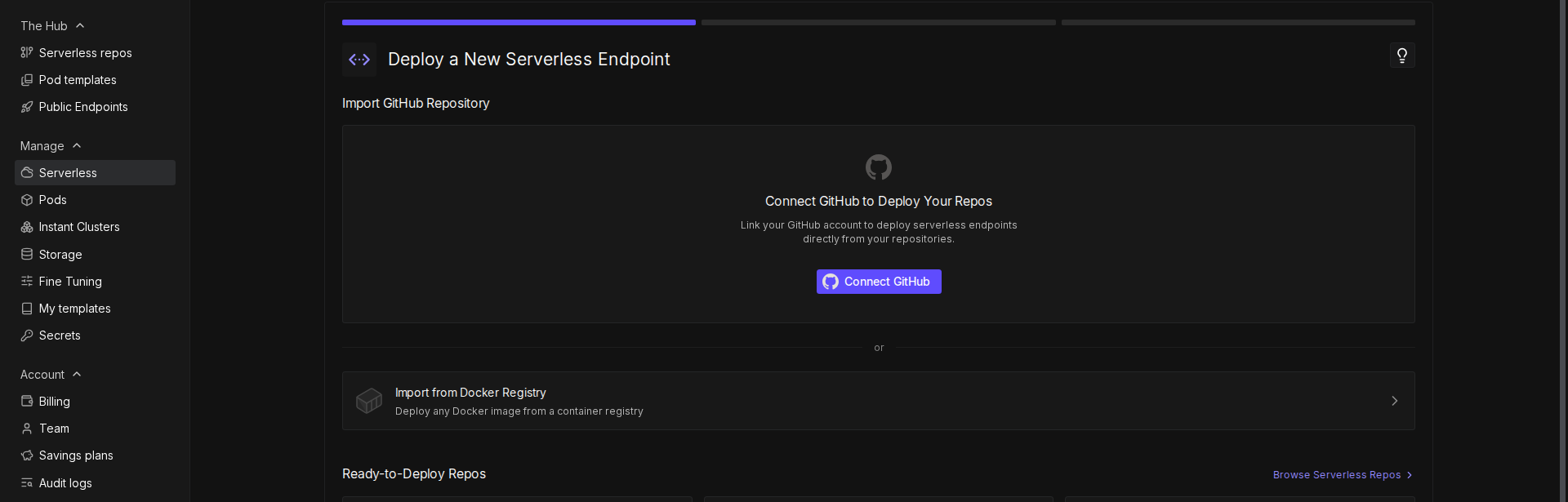
  1. Go to the Serverless section of the Runpod console.
  2. Click New Endpoint.
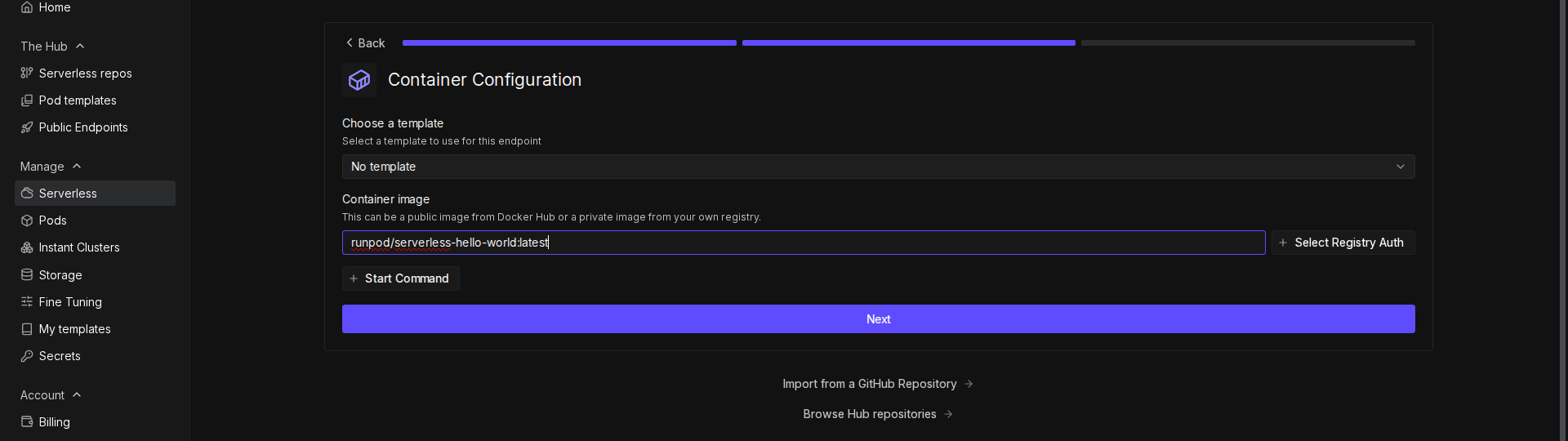
  3. Click Import from Docker Registry.
  1. In the Container Image field, enter your Docker image URL (e.g., docker.io/YOUR_DOCKERHUB_USERNAME/runpod-base64-stream:latest).
  2. Click Next.
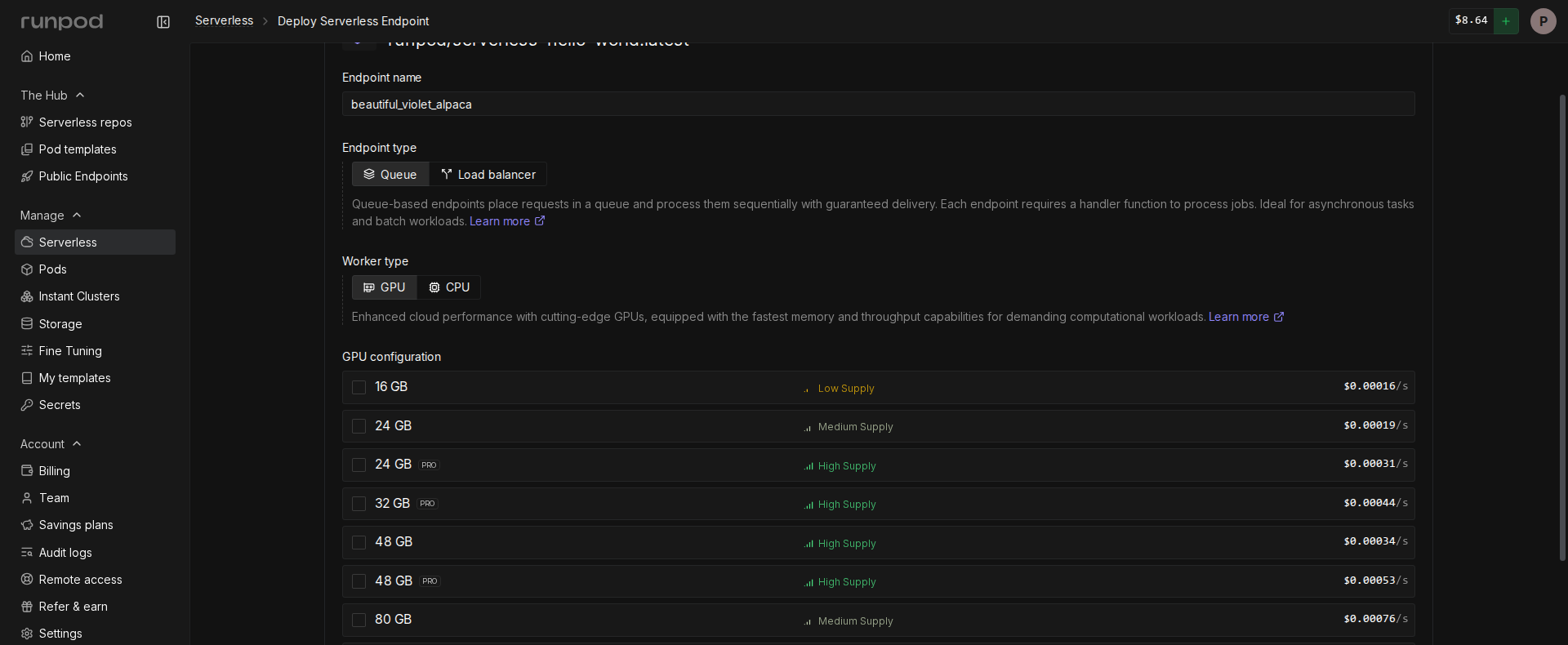
  1. Configure your endpoint:
    • Enter a name for your endpoint, or use the randomly generated name.
    • Make sure Endpoint Type is set to Queue.
    • Under GPU Configuration, select 16 GB GPUs.
    • Leave the rest of the settings at their defaults.
  1. Click Deploy Endpoint.
Once deployed, note the Endpoint ID from the endpoint details page—you’ll need it in the next step.

Step 6: Test the endpoint

Create a file named test_endpoint.py to test your streaming endpoint:
test_endpoint.py
import requests
import json
import time
import base64
from PIL import Image
import io
import os

API_KEY = "YOUR_RUNPOD_API_KEY"
ENDPOINT_ID = "YOUR_ENDPOINT_ID"

# Set up the output directory for saving images
OUTPUT_DIR = os.path.join(os.getcwd(), "output_images")

# Create the output directory if it doesn't exist
if not os.path.exists(OUTPUT_DIR):
    os.makedirs(OUTPUT_DIR)
    print(f"Created output directory: {OUTPUT_DIR}")

def create_test_image():
    """
    Creates a test image and converts it to base64 format.

    Returns:
        str: The image encoded as a base64 string
    """
    # Create a new 100x100 pixel image with a red background
    img = Image.new('RGB', (100, 100), color='red')

    # Create a bytes buffer to hold the image data
    img_byte_arr = io.BytesIO()

    # Save the image to the buffer in PNG format
    img.save(img_byte_arr, format='PNG')

    # Get the byte data from the buffer
    img_byte_arr = img_byte_arr.getvalue()

    # Save a copy of the input image to disk
    input_path = os.path.join(OUTPUT_DIR, 'test_image_input.png')
    img.save(input_path)
    print(f"Saved input test image as: {input_path}")

    # Convert the image bytes to base64 string and return it
    return base64.b64encode(img_byte_arr).decode('utf-8')

def save_base64_image(base64_string, filename):
    """
    Converts a base64 string back to an image and saves it to disk.

    Args:
        base64_string (str): The image data as a base64 string
        filename (str): The name to give the saved file
    """
    try:
        # Create the full path where the file will be saved
        output_path = os.path.join(OUTPUT_DIR, filename)

        # Convert the base64 string back to bytes
        image_data = base64.b64decode(base64_string)

        # Create an image from the bytes
        image = Image.open(io.BytesIO(image_data))

        # Save the image as a PNG file
        image.save(output_path, 'PNG')
        print(f"Saved processed image as: {output_path}")

        return True
    except Exception as e:
        print(f"Error saving image: {str(e)}")
        return False

# Set up the API endpoint URLs
run_url = f"https://api.runpod.ai/v2/{ENDPOINT_ID}/run"

# Set up the headers for the API request
headers = {
    "Authorization": f"Bearer {API_KEY}",
    "Content-Type": "application/json"
}

# Print a redacted version of the authorization header for debugging
print("Using Authorization header:", headers["Authorization"][:10] + "...")

# Create the test image and get its base64 representation
base64_image = create_test_image()

# Create the payload for our API request
payload = {
    "input": {
        "base64_image": base64_image
    }
}

# Send the initial request to start the job
print("\nSending request to:", run_url)
response = requests.post(run_url, headers=headers, json=payload)

# Print debug information about the response
print("Status Code:", response.status_code)

# Check for authentication errors
if response.status_code == 401:
    print("\nAuthentication Error: Please check your API key")
    exit()

try:
    # Parse the JSON response
    job_status = response.json()
    job_id = job_status["id"]
    print(f"\nStarted job: {job_id}")

    # Set up the streaming URL for getting results
    stream_url = f"https://api.runpod.ai/v2/{ENDPOINT_ID}/stream/{job_id}"

    # Keep checking for results until the job is done
    while True:
        # Get the current status of the job
        stream_response = requests.get(stream_url, headers=headers)
        stream_data = stream_response.json()

        # Check if the job is completed
        if stream_data["status"] == "COMPLETED":
            print("\nJob completed!")
            break

        # Check if the job is still running and has new data
        elif stream_data["status"] == "IN_PROGRESS" and stream_data.get("stream"):
            # Process each piece of output data
            for output in stream_data["stream"]:
                print(f"Received: {json.dumps(output, indent=2)}")

                # If we received a processed image, save it
                if "processed_image" in output:
                    filename = f"output_image_{output.get('chunk_number', 'final')}.png"
                    save_base64_image(output["processed_image"], filename)

        # Check if the job failed
        elif stream_data["status"] == "FAILED":
            print("\nJob failed!")
            print(stream_data.get("error", "No error message provided"))
            break

        # Wait a bit before checking again
        time.sleep(0.5)

except json.JSONDecodeError as e:
    print("\nError decoding JSON response:", str(e))
except KeyError as e:
    print("\nError accessing response data:", str(e))
    print("Full response:", job_status)
except Exception as e:
    print("\nUnexpected error:", str(e))
Replace YOUR_RUNPOD_API_KEY and YOUR_ENDPOINT_ID with your actual API key and endpoint ID before running the script.
Run the test script:
python test_endpoint.py
You should see output similar to this:
Started job: 123e4567-e89b-12d3-a456-426614174000
Received: {
  "status": "started",
  "image_info": {
    "format": "PNG",
    "size": [100, 100],
    "mode": "RGB"
  }
}
Received: {
  "chunk_number": 1,
  "chunk_size": 2500,
  "processed_at": "14:30:45",
  "progress": "1/4",
  "percent_complete": 25.0
}
...
Received: {
  "status": "completed",
  "total_chunks_processed": 4,
  "final_timestamp": "14:30:48"
}
Job completed!
The test script sends a base64-encoded image to your endpoint, then polls the /stream endpoint to receive incremental results as they become available.

Next steps

Now that you’ve built a streaming endpoint, explore these related topics: